Connect Google Workspace With TopAgent IC: Work on a Single Platform
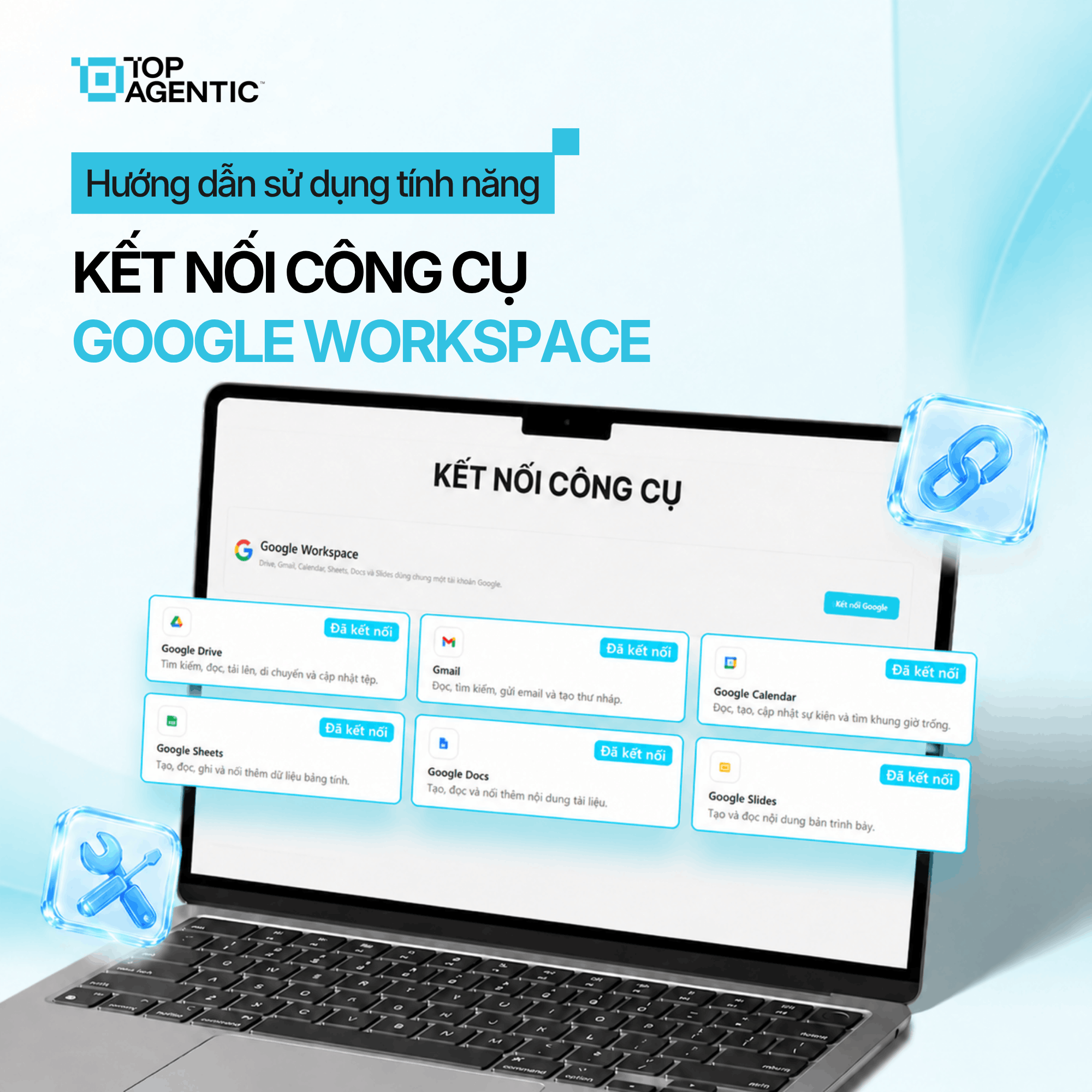
Connecting Google Workspace with TopAgent IC helps link Gmail, Calendar, Drive, Sheets, Docs, and Slides with the AI Agent. Users confirm their account, review permissions, and select Allow to complete the setup.
Connecting Google Workspace with TopAgent IC
Connecting Google Workspace with TopAgent IC links Gmail, Calendar, Drive, Sheets, Docs, and Slides to the AI agent. The user confirms their account, reviews the permissions, and selects “Allow” to complete the setup.
Users often have to switch back and forth between email, calendar, documents, and spreadsheets. Each window switch adds an extra step and interrupts the work.
The Google Workspace connection feature on TopAgent IC brings Google’s tools into the same workflow as the AI agent, within the scope of permissions granted.
1. What Is a Google Workspace Connection on TopAgent IC?
This feature lets you link a Google account to TopAgent IC, developed by ADT Hi-tech. Once permission is granted, the platform can draw on:
- Gmail: read and send email.
- Google Calendar: create calendar events.
- Google Drive: access and use files within the granted permission scope.
- Google Sheets: read, edit, and use spreadsheet data.
- Google Docs: read and edit document content.
- Google Slides: read and edit presentation content.
The connection doesn’t replace the original Google apps; it adds context for the organization’s AI assistant.
The scope depends on Google’s permission settings, the organization’s admin policies, and the product version. Users should check this carefully before letting the AI send an email, create a calendar event, or edit important data.
2. Why Does Switching Between Multiple Apps Disrupt Work?
Users still have to manually connect information that lives in different apps:
- Switching windows: reading Gmail, checking Calendar, finding a file on Drive, then returning to the task.
- Manual copying: content from email, Docs, or Sheets has to be moved over to the AI tool by hand.
- Scattered information: data for a single task is spread across mail, calendar, and documents.
- Broken flow: every time more information is needed, it creates a break in the work.
- AI lacking data: the user has to supply the content before the AI can help.
- Risk of using the wrong version: copying from multiple sources can leave out context or pull the wrong version.
A simple task can end up requiring extra steps to search for, copy, and cross-check data, which reduces focus.
3. What Value Does the Google Workspace Connection Bring to the AI Agent?
Bringing familiar tools into the same workflow
Users connect Gmail, Calendar, Drive, Sheets, Docs, and Slides from the Tools area, which reduces the number of intermediate steps between services.
When the user needs to read an email, check the calendar, and reference a document, the AI agent can help within that same workflow.
Adding context for the AI assistant
Email, calendar, and document content can add context that helps the AI agent read, summarize, or edit content more accurately for the task at hand.
The connection doesn’t guarantee every result will be accurate. Users still need to select the right source and check important output.
Actively confirming the account and access permissions
The user has to select an account, review the permissions, and click “Allow” to see exactly what scope of access the system is requesting.
For business accounts, permissions may be restricted by an administrator. Organizations should define who is allowed to connect and what scope is appropriate.
4. How to Connect Google Workspace with TopAgent IC
Step 1: Go to the Tools Area
- Open the left-hand menu bar on TopAgent IC.
- Select Tools.
- The system opens the Tool Connections interface.
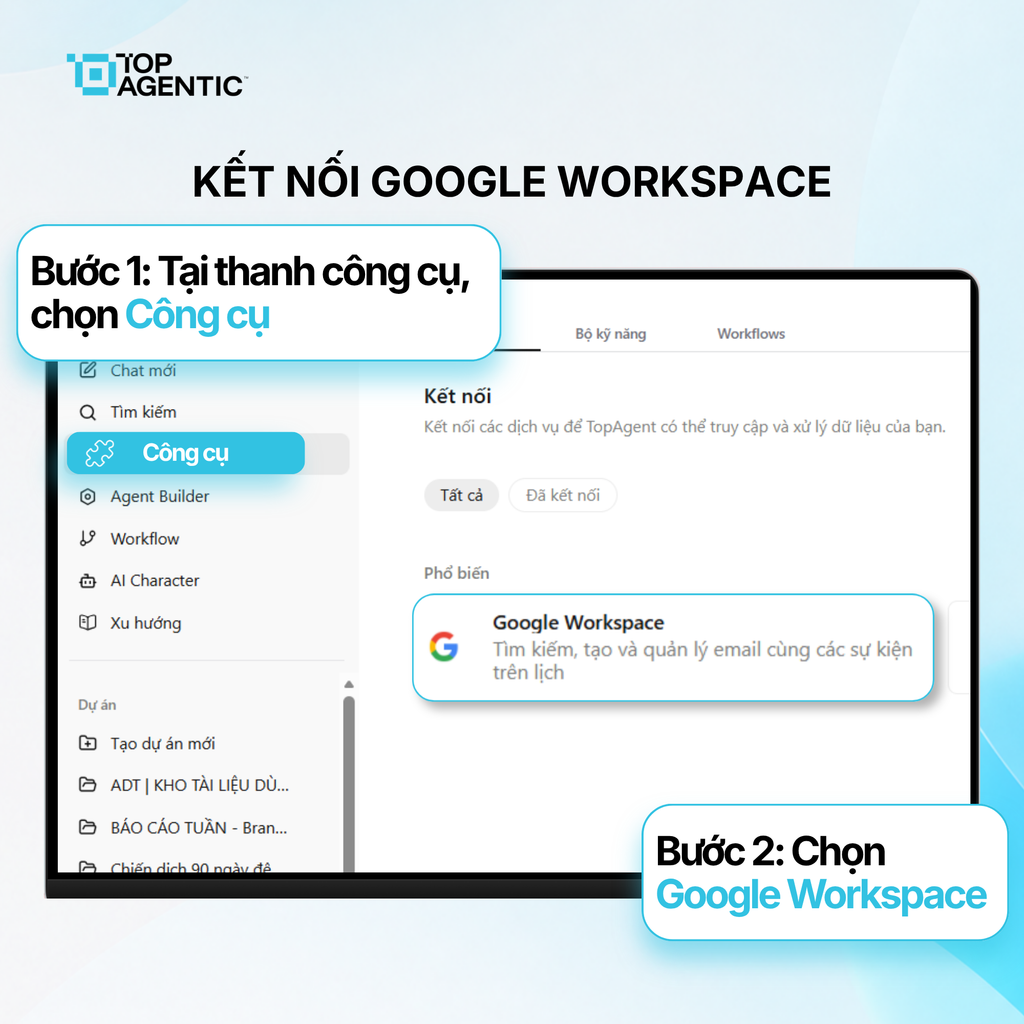
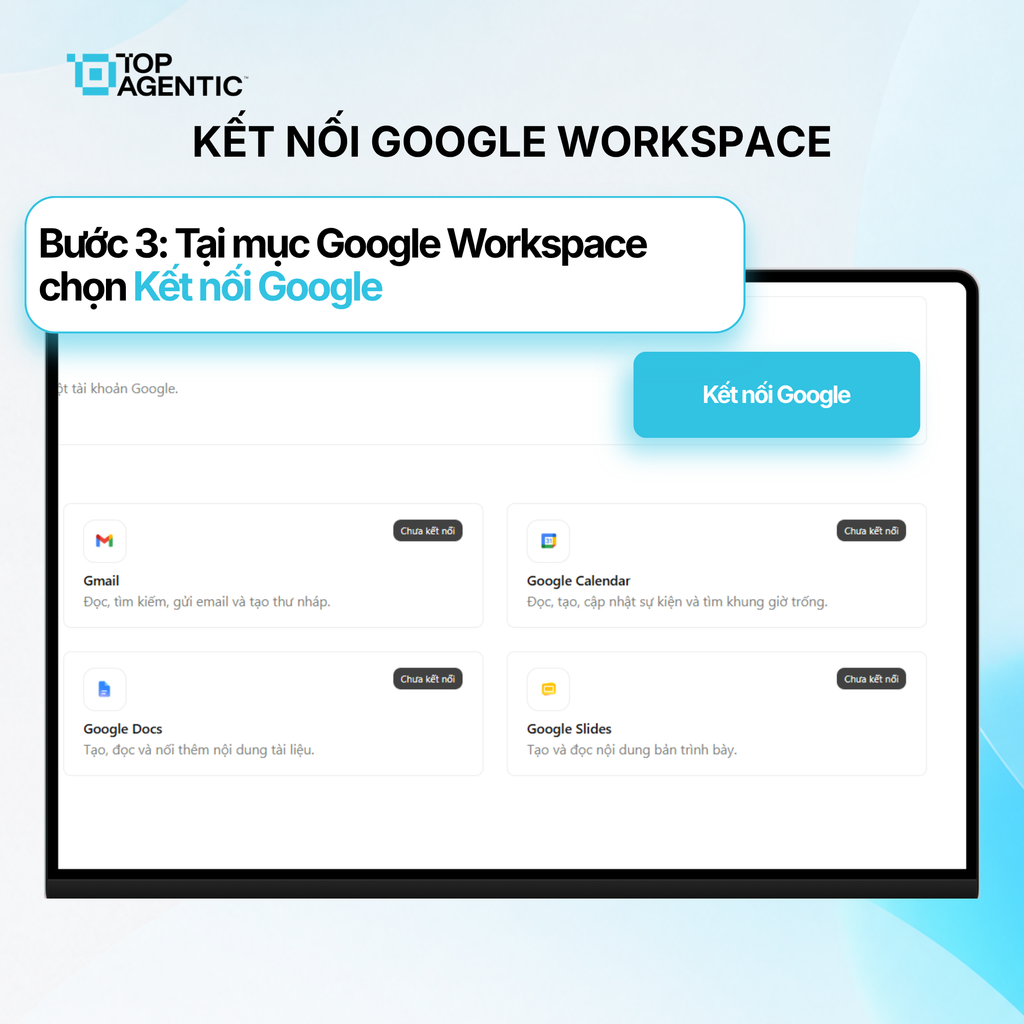
Step 2: Select “Connect Google”
- In the Tool Connections interface, find the Google Workspace section.
- Select “Connect Google” to start the setup process.
The system moves to the Google account confirmation step.
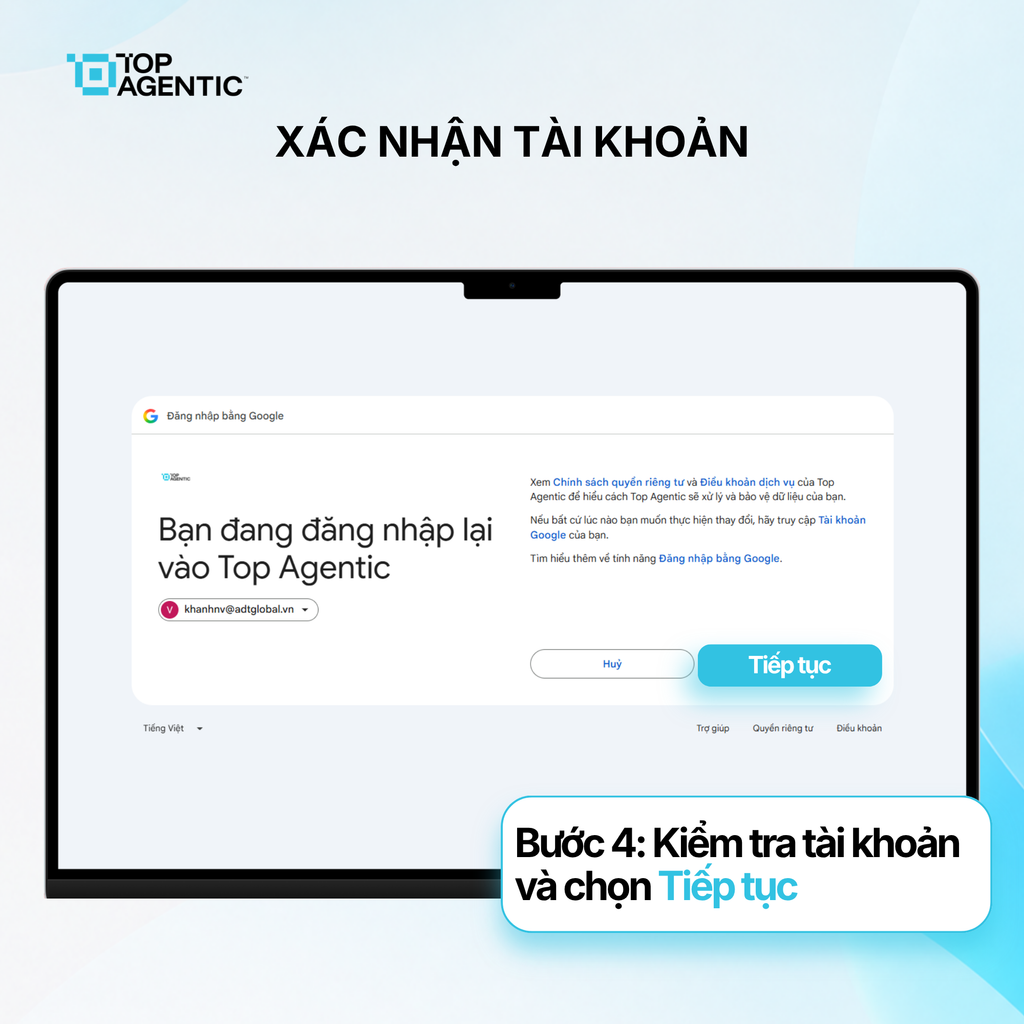
Step 3: Confirm the Google Account
- Check the account information displayed.
- Select the correct account to connect.
- Click Continue to review the access permissions.
If you use multiple accounts, double-check the email address to avoid accidentally connecting a personal account.
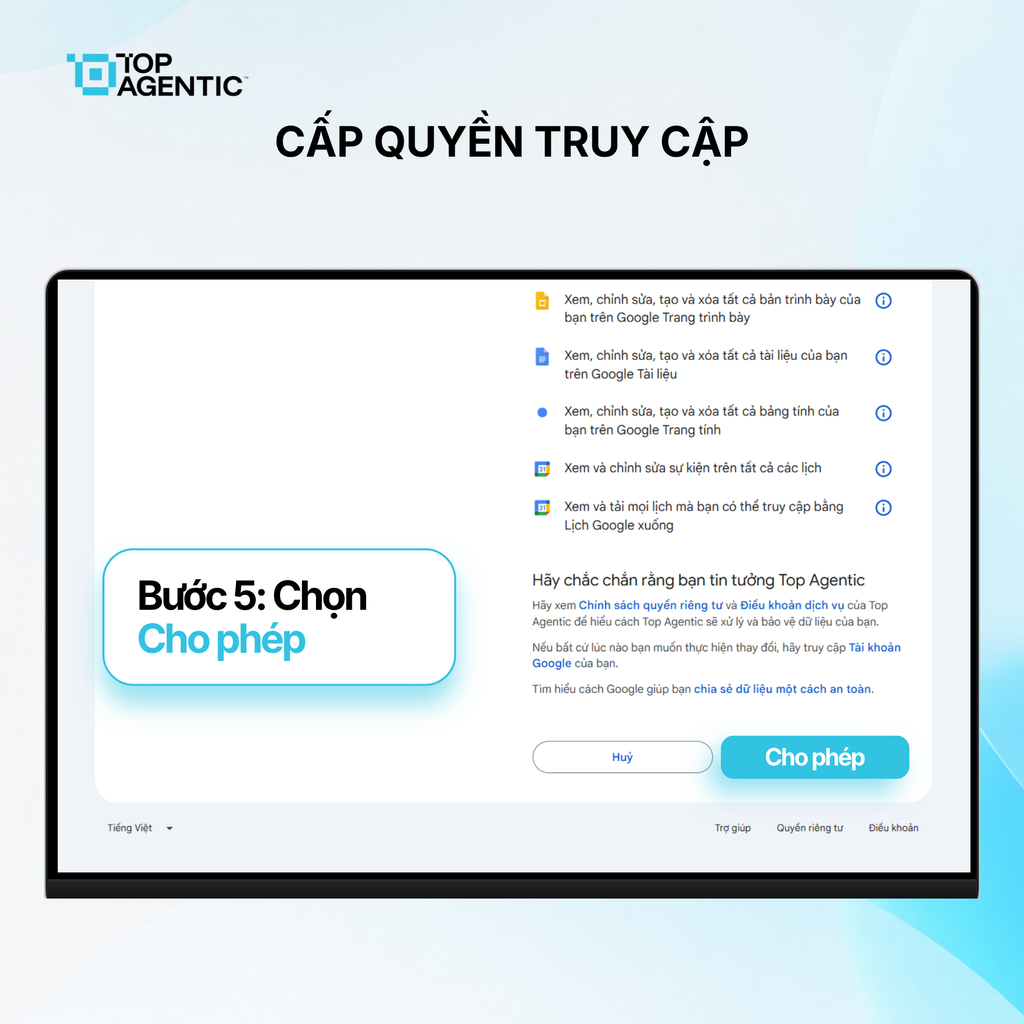
Step 4: Review and Grant Permissions
- Read through the list of permissions the system is requesting.
- Check the services and the scope of data access being requested.
- If you agree, select “Allow.”
- Wait for the interface to show the “connection successful” status.
Once this is complete, the user can start using the tools within the permissions granted. If you don’t understand what a particular permission covers, ask your admin team before proceeding.
5. Things to Check Before Granting Google Workspace Permissions
Connecting the tool directly affects access to data and the ability to perform tasks. Users should:
- Confirm you’re using the correct account and purpose before selecting Continue.
- Read each permission individually, rather than clicking “allow” out of habit.
- Not connect a personal account if organizational policy doesn’t permit it.
- Only ask the AI to perform tasks within the scope of authorized work.
- Check the recipient, content, and attachments before sending an email.
- Check the time, attendees, and description before creating a calendar event.
- Review changes carefully before editing important Docs, Sheets, or Slides.
- Contact an administrator if a business account is unable to grant permissions.
Organizations should revoke permissions when staff change roles or stop using TopAgent IC. How to disconnect should be confirmed based on the actual configuration in place.
6. Why Should Organizations Connect Google Workspace to the AI Agent?
- Less switching between apps: email, calendar, and documents can be used within the same workflow as the AI.
- Less manual copying: users don’t have to copy each piece of content into the chat panel.
- Added context: data within the granted permissions helps the AI agent provide more relevant support.
- Connects everyday tasks: reading email, creating calendar events, and working with documents, all on one platform.
- Active permission management: the connection process requires confirming the account and approving the permissions.
TopAgent IC connects Google’s tools to the AI agent to reduce intermediate steps. Organizations should pilot this with a small group before rolling it out more broadly.
Conclusion
Connecting Google Workspace with TopAgent IC brings Gmail, Calendar, Drive, Sheets, Docs, and Slides into the same workflow as the AI agent.
The feature reduces app-switching and adds context for the AI. Users still need to manage permissions and check important actions carefully.
Frequently Asked Questions About Connecting Google Workspace with TopAgent IC
Which Google tools does TopAgent IC connect with?
The platform supports Gmail, Google Calendar, Drive, Sheets, Docs, and Slides, depending on the product version and the permissions granted.
What tasks can users perform after connecting?
Users can read and send email, create calendar events, and work with documents within the permissions they’ve approved.
Can TopAgent IC access an account without authorization?
No. The connection is only completed after the user confirms the account and selects “Allow.”
What should you do if permissions can’t be granted?
Permissions may depend on the Google Workspace administrator. Users should contact the team responsible for managing the system.
How is the Google Workspace connection different from Google Drive sync?
The Workspace connection serves multiple Google services; Drive sync focuses specifically on bringing documents into the project’s knowledge base.