Interactive event screen: Checklist for choosing the right equipment
A good-looking screen does not necessarily create a good experience. The device also has to suit the viewing distance, lighting, content, and number of people operating it.
A good-looking screen does not necessarily create a good experience. The device also has to suit the viewing distance, lighting, content, and number of people operating it. Choosing an interactive event screen should therefore start from the experience goal, and only then move on to specifications.
Define the goal, placement, number of users, and content before choosing a screen. Then check the size, brightness, anti-glare coating, touch technology, latency, connection ports, software, mounting structure, and technical backup plan. Always test with the exact content files and computer that will be used at the event.
What is an interactive event screen?
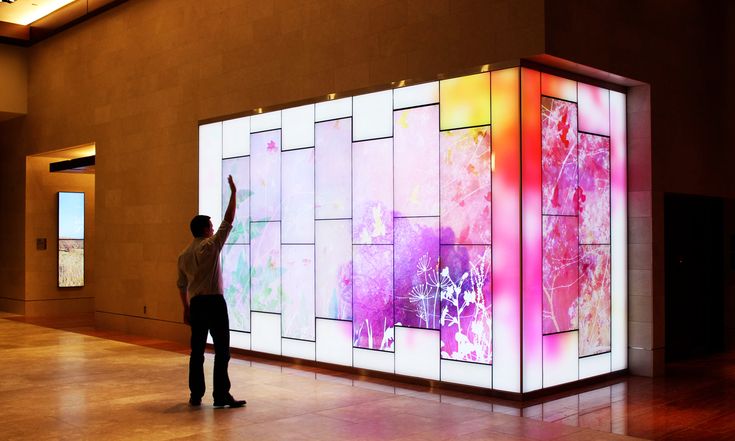
An interactive event screen lets visitors operate it directly by hand, stylus, or sensor to explore products, look up information, play games, or register. The device appears at exhibitions, conferences, launches, and showrooms. The quality of the experience depends on hardware, interface, and operations together.
Common types of interactive screens
All-in-one interactive screens
Flat screens with built-in touch, speakers, and an operating system or a slot for a computer, suited to presentations, workshops, and product demonstrations. ViewSonic lists ViewBoard options from 55 to 110 inches.
Touch kiosks
Kiosks are usually vertical, free-standing units with an interface built for a single task such as check-in, surveys, or lookup.
Interactive tables
Screens placed horizontally or at a slant so several people can explore maps, models, or products together; height and accessibility need to be considered.
Large-format screens with sensors
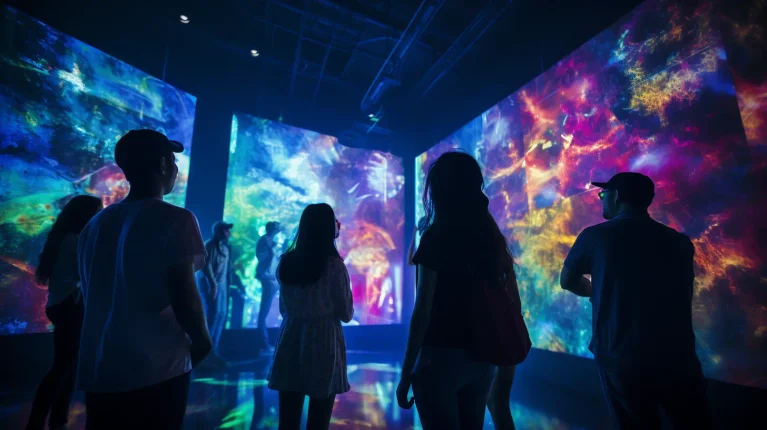
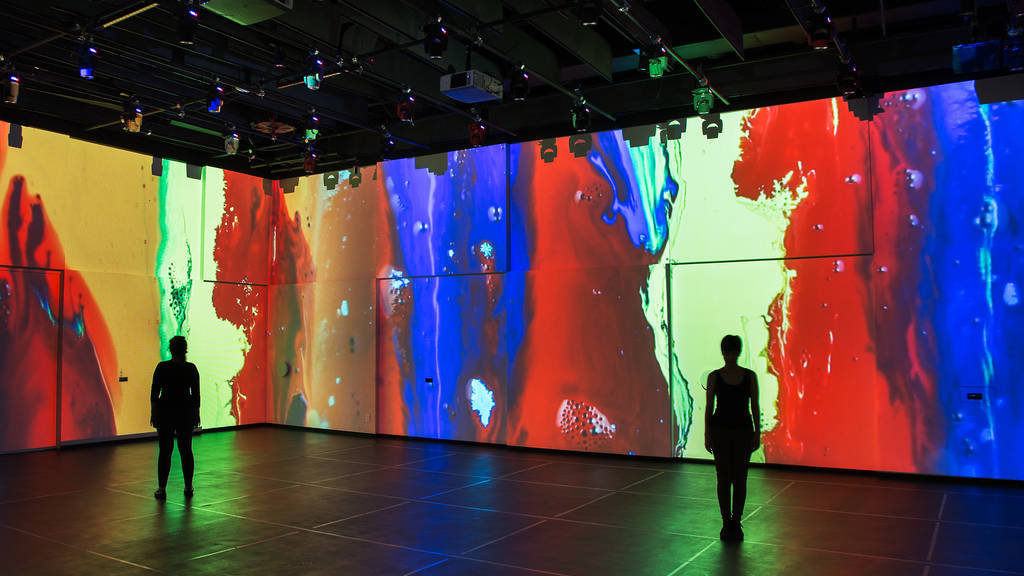
Large spaces can use LED, video walls, or projection combined with cameras and sensors. This kind of solution requires its own design and calibration.
Checklist for choosing an interactive event screen
1. Define the interaction goal
Decide whether visitors need to view, choose products, play games, leave their details, or collaborate. Also choose the metrics to measure, such as touches, completions, or experience time. The goal determines the device, software, and staffing.
2. Survey the location and lighting
Check the direction of the lights, light sources behind visitors, and reflective surfaces. Compare brightness, anti-glare coating, and readability at the venue. A Samsung WAF model lists 400 cd/m² and 25% haze; this is a reference point, not a universal threshold.
3. Choose the size based on user behavior
Choose the size according to distance and the number of users. 55–65 inches suits small groups; 75–86 inches gives a wider area for workshops. Also check operating height, standing clearance, traffic flow, and reach.
4. Check the technology and number of touch points
Infrared touch is common on large screens; capacitive touch feels closer to a phone and is usually suited to kiosks. The number of touch points only matters if the content supports multiple users. The ViewBoard 8650-5 lists up to 40 touch points, but applications and the operating system can impose practical limits.
5. Evaluate latency and accuracy
At acceptance testing, try touching all four corners, dragging objects, typing on the keyboard, zooming, and performing continuous operations. If a stylus is used, check its accuracy, palm rejection, and where the stylus is stored.
6. Check resolution and content aspect ratio
4K suits product images or detailed maps, but the computer, cables, and software must be capable enough. Confirm in advance whether the screen is landscape or portrait, its actual resolution, and the safe interface area.
7. Review all connections
Check HDMI or DisplayPort for video, USB upstream for touch, USB-C, LAN, and Wi-Fi. USB-C carries video, touch, and charging only if both the screen and the laptop support it. For 4K, choose cables of the right standard; the Premium High Speed HDMI program tests 18 Gbps bandwidth and electromagnetic interference. You still need to test the full cable run and adapters.
8. Check the operating system and software
Determine whether the content runs on the screen’s operating system, an OPS module, or an external laptop. Check files, browser, fonts, installation permissions, auto-start, and kiosk mode. If visitor data is collected, you need notices, protection, and a suitable deletion process.
9. Calculate structure and safety
Confirm the load capacity of the stand, mount, partition, and floor; also check the brackets, heat dissipation, power supply, and anti-tipping measures. Cables must be hidden and secured. In crowded areas, safety should take priority over aesthetics.
10. Prepare operations and backup equipment
Assign who starts the equipment, assists visitors, and handles faults. Prepare a backup laptop, cables, adapters, power, and offline content. Run a continuous test; check temperature, sleep mode, notifications, and recovery after a power outage.
Quick acceptance checklist
| Check group | Question to confirm |
|---|---|
| Experience | What action does the visitor perform, and for how long? |
| Display | Are the size, brightness, and anti-glare coating suitable? |
| Touch | Are touch points accurate across the whole screen? |
| Content | Are the aspect ratio, resolution, fonts, and language correct? |
| Connectivity | Are video, touch, network, and audio stable? |
| Structure | Are the stand, mounts, power supply, and cables safe? |
| Operations | Is there a person in charge and replacement equipment? |
| Data | Is there a policy for collecting, storing, and deleting information? |
Should you rent or buy an interactive screen?
Renting suits short events or businesses that do not have an operations team; the service package should include installation, calibration, and replacement equipment.
Buying suits showrooms or long-running activation series. Compare total cost, including stands, computers, software, warranty, storage, and upgrades.
Common deployment mistakes
- Choosing a screen to fit the partition wall while ignoring users’ reach.
- Designing the interface on a laptop and never testing it at actual size.
- Assuming that plugging in HDMI also carries touch.
- Relying entirely on the venue’s Wi-Fi.
- Not locking notifications, sleep mode, or operating system updates.
- Having no staff to guide visitors and no replacement plan on site.
Conclusion
Choosing an interactive event screen is a question of experience, content, equipment, and operations. A clear checklist helps avoid decisions based on isolated specifications and reduces risk on site.
ADT Global can support you from equipment consulting and content design to integration and operations. Contact ADT Global to build a solution that fits your event’s goals.
Frequently Asked Questions
What size should an interactive event screen be?
The size depends on viewing distance, number of users, and placement. Small groups can start at 55–65 inches; large spaces need a survey before choosing.
Does a touchscreen need an additional computer?
It depends on the device and the application. Simple content can run on the built-in operating system; custom applications usually need an OPS module or an external computer.
Does touch work when plugged in via HDMI?
Normally, HDMI carries only video and audio. The touch signal usually needs an additional USB upstream connection or a compatible USB-C connection.
Should you use the venue’s Wi-Fi?
You can, after checking its load and coverage, but important content should have an offline copy or a backup connection.
How long before the event should the screen be tested?
Test from the content production stage, run acceptance testing at the installation site, and rerun the entire system before the doors open.